ID1
2
3
4
5
6
7
8
9
10
11
12
13
14
15
16
17
18
19
20
21
22
23
24
25
26
27
28
29
30
31
32
33
34
35
36
37
38
39
40
Salary Compa- Midpoint
ratio
55.6
27.2
35
59.5
48.3
76.7
41.4
21.8
75.8
23.9
23.3
61.2
42.5
23.8
22.8
42.6
65.9
34.6
25.6
34.2
73.1
56.1
22.9
54.6
24.8
22.8
45.5
76
77.5
45.5
24.3
27.5
55.9
27.7
23.5
23.6
22.9
59.5
35.9
23.8
0.976
0.877
1.128
1.044
1.007
1.145
1.035
0.949
1.132
1.040
1.014
1.073
1.063
1.033
0.993
1.066
1.156
1.115
1.114
1.102
1.091
1.169
0.994
1.137
1.080
0.990
1.137
1.134
1.157
0.948
1.058
0.888
0.981
0.895
1.021
1.026
0.996
1.044
1.159
1.036
57
31
31
57
48
67
40
23
67
23
23
57
40
23
23
40
57
31
23
31
67
48
23
48
23
23
40
67
67
48
23
31
57
31
23
23
23
57
31
23
Age
34
52
30
42
36
36
32
32
49
30
41
52
30
32
32
44
27
31
32
44
43
48
36
30
41
22
35
44
52
45
29
25
35
26
23
27
22
45
27
24
Performance Service Gender
Rating
85
80
75
100
90
70
100
90
100
80
100
95
100
90
80
90
55
80
85
70
95
65
65
75
70
95
80
95
95
90
60
95
90
80
90
75
95
95
90
90
8
7
5
16
16
12
8
9
10
7
19
22
2
12
8
4
3
11
1
16
13
6
6
9
4
2
7
9
5
18
4
4
9
2
4
3
2
11
6
2
0
0
1
0
0
0
1
1
0
1
1
0
1
1
1
0
1
1
0
1
0
1
1
1
0
1
0
1
0
0
1
0
0
0
1
1
1
0
1
0
Raise Degree Gender1
5.7
3.9
3.6
5.5
5.7
4.5
5.7
5.8
4
4.7
4.8
4.5
4.7
6
4.9
5.7
3
5.6
4.6
4.8
6.3
3.8
3.3
3.8
4
6.2
3.9
4.4
5.4
4.3
3.9
5.6
5.5
4.9
5.3
4.3
6.2
4.5
5.5
6.3
0
0
1
1
1
1
1
1
1
1
1
0
0
1
1
0
1
0
1
0
1
1
0
0
0
0
1
0
0
0
1
0
1
1
0
0
0
0
0
0
M
M
F
M
M
M
F
F
M
F
F
M
F
F
F
M
F
F
M
F
M
F
F
F
M
F
M
F
M
M
F
M
M
M
F
F
F
M
F
M
41
42
43
44
45
46
47
48
49
50
40.1
23.3
76.1
69.7
52.8
61.5
62.3
70.2
62
59.1
1.003
1.014
1.136
1.222
1.100
1.079
1.093
1.232
1.088
1.036
40
23
67
57
48
57
57
57
57
57
25
32
42
45
36
39
37
34
41
38
80
100
95
90
95
75
95
90
95
80
5
8
20
16
8
20
5
11
21
12
0
1
1
0
1
0
0
1
0
0
4.3
5.7
5.5
5.2
5.2
3.9
5.5
5.3
6.6
4.6
0
1
0
1
1
1
1
1
0
0
M
F
F
M
F
M
M
F
M
M
Grade
E
B
B
E
D
F
C
A
F
A
A
E
C
A
A
C
E
B
A
B
F
D
A
D
A
A
C
F
F
D
A
B
E
B
A
A
A
E
B
A
Do not manipuilate Data set on this page, copy
to another page to make changes
The ongoing question that the weekly assignments will focus on is: Are males and females paid the same
Note: to simplfy the analysis, we will assume that jobs within each grade comprise equal work.
The column labels in the table mean:
ID – Employee sample number Salary – Salary in thousands
Age – Age in years
Performance Rating – Appraisal rating (employee evaluation scor
Service – Years of service (rounded)
Gender – 0 = male, 1 = female
Midpoint – salary grade midpointRaise – percent of last raise
Grade – job/pay grade
Degree (0= BS\BA 1 = MS)
Gender1 (Male or Female)
Compa-ratio – salary divided by midpoint
C
A
F
E
D
E
E
E
E
E
Week 1: Descriptive Statistics, including Probability
While the lectures will examine our equal pay question from the compa-ratio viewpoint, our weekly assignments will
examining the issue using the salary measure.
The purpose of this assignmnent is two fold:
1. Demonstrate mastery with Excel tools.
2. Develop descriptive statistics to help examine the question.
3. Interpret descriptive outcomes
The first issue in examining salary data to determine if we – as a company – are paying males and females equally for
descriptive statistics to give us something to make a preliminary decision on whether we have an issue or not.
1
Descriptive Statistics: Develop basic descriptive statistics for Salary
The first step in analyzing data sets is to find some summary descriptive statistics for key variables.
Suggestion: Copy the gender1 and salary columns from the Data tab to columns T and U at the right.
Then use Data Sort (by gender1) to get all the male and female salary values grouped together.
a.
Use the Descriptive Statistics function in the Data Analysis tab
to develop the descriptive statistics summary for the overall
group’s overall salary. (Place K19 in output range.)
Highlight the mean, sample standard deviation, and range.
Using Fx (or formula) functions find the following (be sure to show the formula
and not just the value in each cell) asked for salary statistics for each gender:
Male
Female
Mean:
Sample Standard Deviation:
Range:
b.
2
Develop a 5-number summary for the overall, male, and female SALARY variable.
For full credit, show the excel formulas in each cell rather than simply the numerical answer.
Overall Males
Females
Max
3rd Q
Midpoint
1st Q
Min
3
Location Measures: comparing Male and Female midpoints to the overall Salary data range.
For full credit, show the excel formulas in each cell rather than simply the numerical answer.
Male
Using the entire Salary range and the M and F midpoints found in Q2
a. What would each midpoint’s percentile rank be in the overall range?
b. What is the normal curve z value for each midpoint within overall range?
4
Probability Measures: comparing Male and Female midpoints to the overall Salary data range
For full credit, show the excel formulas in each cell rather than simply the numerical answer.
Male
Using the entire Salary range and the M and F midpoints found in Q2, find
a. The Empirical Probability of equaling or exceeding (=>) that value for
b. The Normal curve Prob of => that value for each group
5
Conclusions: What do you make of these results? Be sure to include findings from this week’s lectures a
In comparing the overall, male, and female outcomes, what relationship(s) see, to exist between the data se
What does this suggest about our equal pay for equal work question?
our weekly assignments will focus on
ales and females equally for doing equal work is to develop some
ics for key variables.
s T and U at the right.
Place Excel outcome in Cell K19
ary data range.
merical answer.
Female
Use Excel’s =PERCENTRANK.EXC function
Use Excel’s =STANDARDIZE function
Salary data range
merical answer.
Female
Show the calculation formula = value/50 or =countif(range,”>=”&cell)/50
Use “=1-NORM.S.DIST” function
s from this week’s lectures as well.
to exist between the data sets?
Gender1
F
F
F
F
F
F
F
F
F
F
F
F
F
F
F
F
F
F
F
F
F
F
F
F
F
M
M
M
M
M
M
M
M
M
M
M
M
M
M
M
M
M
M
Salary
35
41.4
21.8
23.9
23.3
42.5
23.8
22.8
65.9
34.6
34.2
56.1
22.9
54.6
22.8
76
24.3
23.5
23.6
22.9
35.9
23.3
76.1
52.8
70.2
55.6
27.2
59.5
48.3
76.7
75.8
61.2
42.6
25.6
73.1
24.8
45.5
77.5
45.5
27.5
55.9
27.7
59.5
M
M
M
M
M
M
M
23.8
40.1
69.7
61.5
62.3
62
59.1
Week 2: Identifying Significant Differences – part 1
To Ensure full credit for each question, you need to show how you got your results. This involves either showing wh
or showing the excel formula in each cell.
Be sure to copy the appropriate data columns from the data tab to
As with our examination of compa-ratio in the lecture, the first question we have about salary between the genders in
What we do, depends upon our findings.
1
As with the compa-ratio lecture example, we want to examine salary variation within the groups – are they
a
What is the data input ranged used for this question:
b
c.
Which is needed for this question: a one- or two-tail hypothesis statement and test ?
Answer:
Why:
Step 1:
Step 2:
Step 3:
Step 4:
Step 5:
Ho:
Ha:
Significance (Alpha):
Test Statistic and test:
Why this test?
Decision rule:
Conduct the test – place test function in cell k10
Step 6: Conclusion and Interpretation
What is the p-value:
What is your decision: REJ or NOT reject the null?
Why?
What is your conclusion about the variance in the
population for male and female salaries?
2
Once we know about variance quality, we can move on to means: Are male and female average salaries eq
(Regardless of the outcome of the above F-test, assume equal variances for this test.)
c.
a
What is the data input ranged used for this question:
b
Does this question need a one or two-tail hypothesis statement and test?
Why:
Ho:
Ha:
Significance (Alpha):
Test Statistic and test:
Why this test?
Decision rule:
Conduct the test – place test function in cell K35
Step 1:
Step 2:
Step 3:
Step 4:
Step 5:
Step 6: Conclusion and Interpretation
What is the p-value:
What is your decision: REJ or NOT reject the null?
Why?
What is your conclusion about the means in the population for
male and female salaries?
3
Education is often a factor in pay differences.
Do employees with an advanced degree (degree = 1) have higher average salaries?
Note: assume equal variance for the salaries in each degree for this question.
a
What is the data input ranged used for this question:
b
c.
Step 1:
Step 2:
Step 3:
Step 4:
Step 5:
Does this question need a one or two-tail hypothesis statement and test?
Why:
Ho:
Ha:
Significance (Alpha):
Test Statistic and test:
Why this test?
Decision rule:
Conduct the test – place test function in cell K60
Step 6: Conclusion and Interpretation
What is the p-value:
Is the t value in the t-distribution tail indicated by the
arrow in the Ha claim?
What is your decision: REJ or NOT reject the null?
Why?
What is your conclusion about the impact of education on
average salaries?
4
Considering both the compa-ratio information from the lectures and your salary information, what conclus
Why – what statistical results support this conclusion?
lves either showing where the data you used is located
mns from the data tab to the right for your use this week.
between the genders involves equality – are they the same or different?
Use Cell K10 for the Excel test outcome location.
Use Cell K35 for the Excel test outcome location.
Use Cell K60 for the Excel test outcome location.
ormation, what conclusions can you reach about equal pay for equal work?
Week 3: Identifying Significant Differences – part 2
To Ensure full credit for each question, you need to show how you got your results. This involves either showing wh
or showing the excel formula in each cell.
Be sure to copy the appropriate data columns from
1
A good pay program will have different average salaries by grade. Is this the case for our company?
a
What is the data input ranged used for this question:
Note: assume equal variances for each grade, even though this may not be accurate, for purposes of this question.
b.
Step 1:
Step 2:
Step 3:
Step 4:
Step 5:
Ho:
Ha:
Significance (Alpha):
Test Statistic and test:
Why this test?
Decision rule:
Conduct the test – place test function in cell K08
Step 6: Conclusion and Interpretation
What is the p-value:
What is your decision: REJ or NOT reject the null?
Why?
What is your conclusion about the means in the
population for grade salaries?
2
If the null hypothesis in question 1 was rejected, which pairs of means differ?
(Use the values from the ANOVA table to complete the follow table.)
Groups
Compared
Mean Diff.
T value used +/- Term
Low
A-B
A-C
A-D
A-E
A-F
B-C
B-D
B-E
B-E
C-D
C-E
C-F
D-E
D-F
E-F
3
One issue in salary is the grade an employee is in – higher grades have higher salaries.
This suggests that one question to ask is if males and females are distributed in a similar pattern across the
a
What is the data input ranged used for this question:
b.
Step 1:
Step 2:
Step 3:
Step 4:
Step 5:
Ho:
Ha:
Significance (Alpha):
Test Statistic and test:
Why this test?
Decision rule:
Conduct the test – place test function in cell K54
Step 6: Conclusion and Interpretation
What is the p-value:
What is your decision: REJ or NOT reject the null?
Why?
What is your conclusion about the means in the
population for male and female salaries?
4
What implications do this week’s analysis have for our equal pay question?
Why – what statistical results support this conclusion?
This involves either showing where the data you used is located
he appropriate data columns from the data tab to the right for your use this week.
he case for our company?
Use Cell K08 for the Excel test outcome location.
ate, for purposes of this question.
to
High
Difference
Significant? Why?
Use Cell K54 for the Excel test outcome location.
Place the actual distribution in the table below.
A
B
C
D
Male
Female
E
Place the expected distribution in the table below.
A
B
C
D
E
Male
Female
Data Input Table:
Group name:
List salaries within each grade
A
B
Salary Range Groups
C
D
F
F
nge Groups
E
F
Week 4: Identifying relationships – correlations and regression
To Ensure full credit for each question, you need to show how you got your results. This involves either showing wh
or showing the excel formula in each cell.
Be sure to copy the appropriate data columns from the data t
1
What is the correlation between and among the interval/ratio level variables with salary? (Do not include c
a. Create the correlation table.
i.
What is the data input ranged used for this question:
ii. Create a correlation table in cell K08.
b. Technically, we should perform a hypothesis testing on each correlation to determine
if it is significant or not. However, we can be faithful to the process and save some
time by finding the minimum correlation that would result in a two tail rejection of the null.
We can then compare each correlation to this value, and those exceeding it (in either a
positive or negative direction) can be considered statistically significant.
i. What is the t-value we would use to cut off the two tails?
T=
ii. What is the associated correlation value related to this t-value? r =
c. What variable(s) is(are) significantly correlated to salary?
d. Are there any surprises – correlations you though would be significant and are not, or non significant cor
e. Why does or does not this information help answer our equal pay question?
2
Perform a regression analysis using salary as the dependent variable and the variables used in Q1 along wi
our two dummy variables – gender and education. Show the result, and interpret your findings by answerin
Suggestion: Add the dummy variables values to the right of the last data columns used for Q1.
What is the multiple regression equation predicting/explaining salary using all of our possible variables ex
a.
What is the data input ranged used for this question:
b.
Step 1: State the appropriate hypothesis statements:
Ho:
Ha:
Step 2: Significance (Alpha):
Step 3: Test Statistic and test:
Why this test?
Step 4: Decision rule:
Step 5: Conduct the test – place test function in cell M34
Step 6: Conclusion and Interpretation
What is the p-value:
What is your decision: REJ or NOT reject the null?
Why?
What is your conclusion about the factors influencing
the population salary values?
c.
If we rejected the null hypothesis, we need to test the significance of each of the variable coeff
Step 1: State the appropriate coefficient hypothesis statements:
(Write a single pair, we
Ho:
Ha:
Step 2: Significance (Alpha):
Step 3: Test Statistic and test:
Why this test?
Step 4: Decision rule:
Step 5: Conduct the test
Note, in this case the test has been performed and is part of the Regression output a
Step 6: Conclusion and Interpretation
Place the t and p-values in the following table
Identify your decision on rejecting the null for each variable. If you reject the null,
Midpoint
Age
Perf. Rat. Seniority
Raise
Gender
t-value:
P-value:
Rejection Decision:
If Null is rejected, what is the
variable’s coefficient value?
Using the intercept coefficient and only the significant variables, what is the equation?
Salary =
d.
Is gender a significant factor in salary?
e.
Regardless of statistical significance, who gets paid more with all other things being equal?
f.
How do we know?
3
After considering the compa-ratio based results in the lectures and your salary based results, what else wou
before answering our question on equal pay? Why?
4
Between the lecture results and your results, what is your answer to the question
of equal pay for equal work for males and females? Why?
5
What does regression analysis show us about analyzing complex measures?
lves either showing where the data you used is located
olumns from the data tab to the right for your use this week.
lary? (Do not include compa-ratio in this question.)
Use Cell K08 for the Excel test outcome location.
, or non significant correlations you thought would be?
es used in Q1 along with
ur findings by answering the following questions.
r possible variables except compa-ratio?
Use Cell M34 for the Excel test outcome location.
ch of the variable coefficients.
Write a single pair, we will use it for each variable separately.)
he Regression output above.
If you reject the null, place the coefficient in the table.
Degree
s the equation?
things being equal?
d results, what else would you like to know
BUS 308 Week 2 Lecture 3
Setting up the F and T tests in Excel
After reading this lecture, the student should know:
1. How to set up data lists for the F and T tests.
2. How to set-up and conduct the F test (both options) produced by Excel
3. How to set-up and conduct the T-test produced by Excel
Overview
One of the nice characteristics of Excel is that setting up and running most functions and
tests is done in a very similar fashion, only having specific test related differences showing up in
the different functions and tests.
This lecture will cover setting up data ranges that will be used for all of our statistical
functions. It will then move into setting up the F and T tests specifically.
Setting up Data
While in the hypothesis testing procedure it was said to set up steps 1 – 4 before even
looking at the data, we can set up the data columns to be used at any time. The set-up is simple
and straightforward. But, we have a couple of questions to answer before we set things up.
Since this week needs us to compare male and female outcomes (and Degree outcomes in
Question 3), we need to decide how we want our data to look. Sticking strictly with the gender
related data (you can do similar things with the degree data when ready), we need to decide if we
want our key data (compa-ratios, salary, etc.) to be in a long column or in two columns. An
example of both is shown in the screen shot below.
Notice that Column S contains all of the compa-ratio values (all 50 if we could see the
entire range) and that they are grouped by gender, with the first 25 rows being female values and
the last 25 rows being male values. The other way to display the data values is to have them
listed in separate columns, such as shown in columns Q and R – each having a label heading.
Start by looking at what variables the questions are asking for. For week 2, we have
Questions 1 and 2 asking for the same variables – compa-ratio and gender1, so we can use the
same location for both questions. Question 3 asks for a different set of variables, compa-ratio
and degree, so we should set up a different area for that question. Remember, it is best to
NEVER sort the data on the data tab. An error in sorting that missed a column could mess up the
data set and make it unusable for other problems.
In either case, copy the entire data column of interest (for example, compa-ratio,
Gender1, Degree, etc.) from the Data Tab to the weekly worksheet. Highlight the entire data
range of interest including the label in row 1, then press Control + C at the same time. Go over
to the weekly work sheet and find a column to the right of the work area (generally columns Q or
higher will be OK) and press Control + V at the same time. Repeat this for all the variables you
need.
After pasting the variables, use the Sort function in the Data tab to arrange them in
whatever order you want. You can do multiple sorts at the same time with this function – for
example, you can sort the compa-ratios by gender1 first (to group all male and female values
together) and then within each gender group sort the values from high to low by adding a second
sort row.
If you would like, you can then create new columns of data by copying and pasting
sections of the data range – for example, creating Male and Female columns. The advantage to
this approach is that you can include the labels in the data entry boxes and have the variable
labels included in the output tables as the examples showed in Lecture 2.
The F-Test Set-up
In each question asking for an analysis of data using the hypothesis testing process, step 5
requires that you place the results of a statistical test in a certain cell. This, is mostly for the
convenience of the instructors reviewing your work but deciding where to put the output is
required for every test you run.
The following shows the setting up of the hypothesis testing steps and conducting of the
F-test to answer our question about the equality of male and female compa-ratio variance. (Note:
again, you will perform these steps for salary variance in your homework.)
Before even getting to the test itself, we have a couple of questions to answer. Part a of
question 1 asks where the data range is for this question. We always need to know where the
data is that we are using for tests, even if – as is true in this case – the data is on the same work
sheet. So, list where the variables are listed, such as in the range S1:T51 or Q1:Q26 as in the
examples above. Either would be an appropriate entry for the data shown. One reason for this
question is to allow instructors to see if a data copy or sorting error occurred if the data results
are not correct.
The second question simply asks for you to decide if a one- or two-tail test is required for
the question being asked. This is to help prepare you for the actual hypothesis testing steps.
Now, the set-up concerns move to Step 5: Conduct the test. Note that a cell location is
given for you to place your outputs. In most cases, the tests we want to perform are located in
the Analysis ToolPak option found in the Analysis tab on the far right of the Data Ribbon. Left
Click on the Data label on the green ribbon at the top of an Excel page, then click on the
Analysis Tab or on the Data Analysis tool listed. Once the Data Analysis list is shown, scroll
down to your desired tool.
Below is a screen shot of locating the F-test Two-Sample for Variance in the Data Analysis list.
The F.TEST option for question 1 is found in the Fx (or Formulas) Statistical list. Here
is a screenshot of where the F.Test is found in the fx Statistical list.
Either test can be used for this question. After highlighting the desired test, just select
OK at the bottom and a data entry box will open. Both are somewhat similar, so only the F-Test
Two Sample for Variances data entry will be shown below.
Here is a screenshot of the data entry box for the F-Test Two-Sample for Variance. Note
that the compa-ratios have been copied over to columns headed by labels of Male and Female.
This lets our test results show the label for each group. Also note, that for this screenshot, the
results are placed next to the data columns (AA2), while in your assignment K10 should be listed
in the Output Range box.
Note, always enter the variables in the order listed in the null hypothesis statement; since
the male values were entered in the Variable 1 range, the hypothesis statements should list the
male variable first. This makes interpreting the test results easier.
Entering cell values into any box is fairly simple. You can simply type the data range
into the box, using a : between the starting and ending cells. You can place the cursor in a box,
left click, and then move the cursor to the top cell in the data range (include labels if present),
hold down the left button and drag the cursor to the end of the data range and release the left
button. Or, you can click on the symbol at the right which opens a box, then enter the data by
either technique just mentioned and click on the icon at the right.
After entering the data ranges, click on the Labels box if, and only if, you have included
labels in the data input range. An alpha of 0.05 is automatically selected but can be changed
simply by entering another value. Finally, go to the Output Options and click on the desired
location – for this class use Output Range and then enter the cell location into the box. Click on
Ok and you are done.
The process is pretty straightforward, but once in a while an error occurs. The most
common is when someone does not include labels in the input range but checks the labels box.
This is fairly easy to spot – the data tables will have a data value listed as a label, and – at least
for the questions this week – will show a data count of 24 rather than the correct count of 25 per
group. If this occurs, simply go back and reenter the data with the labels. Excel will tell you that
you are about to overwrite existing data, and that is what you want to do, so check OK.
The F.Test is even simpler to set-up. Going to Fx (or Formulas), statistical list, and
selecting the F.Test will produce a data entry box that simply asks for each data range – as with
the top entries in the F-Test shown above. Complete them in the same way and select Ok. (Do
not include labels in these ranges.) The F.Test outcome shows up in the cell your cursor was on
when you opened the Fx link.
VIDEO Link: Here is a video on the F-Test Two Sample for Variances: https://screencast-omatic.com/watch/cbQuFRIwDX .
The T-Test Set-up
There are three versions of the T-Test done for us by Excel. The first two are similar
except one version is done if the variances are equal and the other if the variances are not equal.
(Now we see an important reason for performing the F-test first.)
The third version of the T-test is for paired data, and is called T-test Paired Two Sample
for Means. Paired data are two measures taken on the same subject. Examples include a math
and English test score for each student, preference sores for different drinks, and, in our data set
the salary and midpoint values. Note that paired data must be measured in the same units, and be
from the same subjects. Students in the past have incorrectly used the paired t-test on male and
female salaries. These are not paired, as the measures are taken on different people and cannot
be paired together for analysis.
In many ways, setting up Excel’s T-tests, and virtually all the functions we will study,
follow the same steps as we just went through:
1. Set up the data into distinct groups.
2. Select the test function from either the Fx or Analysis list
3. Input the data ranges and output ranges into the appropriate entry boxes, checking
Labels if appropriate.
4. Clicking on OK to produce the output.
As with the F-test, the T-test has a couple of options depending upon what you want your
output to look like. The Fx (or Formulas) option returns simply the p-value for the selected
version of the test. The Data | Analysis selection provides descriptive statistics that are useful for
additional analysis (some of which we will discuss later in the course).
The t-test requires that we select between three versions, one assuming equal variances
between the populations, one assuming unequal variances in the populations, and one requiring
paired data (two measures on each element in the sample, such as salary and midpoint for each
person in our data set.) All have the same data set-up approach, so only one will be shown.
Setting up the data and test for question 2 about mean equality is similar to what one for
the F-test question, and we can actually use the same data columns as we used in question 1 on
variances. Again, after sorting the data into your comparison groups (with labels as we did for
the F-test), select the appropriate test from either the Fx or Analysis list. A completed T-test
Two-Sample Assuming Equal Variances input table is shown below.
The input box looks a lot like the one we saw for the F-test, and is completed in the same way.
Enter the data ranges in the same order you have them listed in the hypothesis statements, check
the labels box if appropriate, and identify your output range top left cell (this is given in the
homework problems for a consistent format for instructor grading).
There is one input that differs and which we have not yet discussed, Hypothesized Mean
Difference. For the most part, we do not use this. An example of when we might want to is
when we have made a change and want to test its effectiveness. For example, we might have a
pre- and post-test in a training course. In the original design, the average improvement might be
10 points on the post-test. If we change the design of the training, we would be interested not
only in showing a significant change between the two tests but also a better change due to the
revision. In this case, the first 10-point difference in the tests is a given, we want to know if the
additional score change is significant. So, we enter 10 in the HMD box, and the analysis looks at
only the mean difference larger than 10, the marginal improvement due to the design change.
The input for the Fx T.Test contains 4 boxes, and produces the p-value in the cell the
cursor is in. The first two boxes are the data range for each variable, and these should not have a
label included. The third box asks whether you have a one or two tail test. The forth box asks
for the kind of test, paired, equal variance, or unequal variance.
Once we click OK for the T.test. we get a output, the p-value. When we click OK on the
Analysis ToolPak function we get a more descriptive table; much like the differences with the
two versions of the F.
There is no difference in setting up a Data Analysis test for a one- or two-tail outcome,
these results are examined in the output, not in the input screens.
Question 3
The only data entry difference for this question is the need to copy, paste, and sort the
degree and salary variable columns. The rest of the set-up is exactly the same as done for either
question 1 or question 2.
Special Case: The One-Sample T-test
Often, we may want to test the results of a sample against a standard; for example, is the
weight of a production run of 8 ounces of canned pears actually equal to the standard of 8.02 oz.?
(Note, most manufactures will put in slightly more than the label says to avoid being
underweight which could result in a fine.)
Excel is not set up to perform this test, but we can “trick” it to do this for us. In the onesample case, we need two pieces of information, the sample values and our comparison standard.
Set these up as if they were any two-sample data sets, have our sample values (for example, 25
female compa-ratios in one column) and our comparison value in another. The comparison data
column will only contain a single value equal to our comparison value. For example, we might
want to test if the average female compa-ratio was greater than the compa-ratio midpoint of 1.00.
The null would be H0: female compa-ratio mean 1.00. The Compa-ratio data column would contain the Female
compa-ratios and the other column (named for convenience as Ho Data) would contain only the
value of 1.00, our standard value.
While we will leave the math for any interested student to perform, if we take the T-test
unequal variance formulas for both the t-value and the df value and have a variance of 0 for one
variable, both will reduce to the one-sample t-test formula and df value. Knowing this, we can
use the unequal variance version of the t-test to perform what is essentially a one-sample test for
us.
The output of this test will show a mean of 1.0 and a variance of 0 for the Ho Data
(comparison) value, and the correct values for the Female compa-ratio variable, including the pvalues.
Here is a video on setting up and using the t-test in Excel: https://screencast-omatic.com/watch/cb6lYcImnn
Summary
Conducting an F or t test is fairly straightforward: set-up the data, select the appropriate
test from the Analysis Toolpak or Fx/Formulas list, enter the data into the set-up box, and
identify the cell you want the result placed in.
Setting up the data for either test is the same. Label two columns with the name of each
group and list all the related measures (for example, all Male salaries in a column named Male)
vertically under the label. Each test has a set-up box that will ask for the ranges for each group.
When entering the data in the Analysis Toolpak function, be sure to include each label.
Labels cannot be included in the Fx version of either test.
Please ask your instructor if you have any questions about this material.
When you have finished with this lecture, please respond to Discussion Thread 3 for this
week with your initial response and responses to others over a couple of days before reading the
third lecture for the week.
Essay Writing Service Features
Our Experience
No matter how complex your assignment is, we can find the right professional for your specific task. Achiever Papers is an essay writing company that hires only the smartest minds to help you with your projects. Our expertise allows us to provide students with high-quality academic writing, editing & proofreading services.
Free Features
Free revision policy
$10Free bibliography & reference
$8Free title page
$8Free formatting
$8How Our Dissertation Writing Service Works
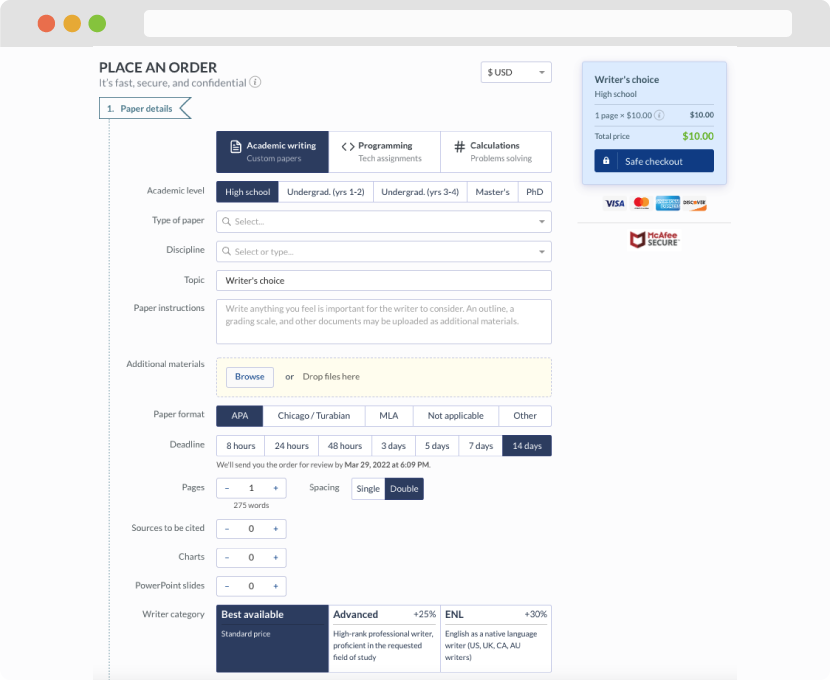
First, you will need to complete an order form. It's not difficult but, if anything is unclear, you may always chat with us so that we can guide you through it. On the order form, you will need to include some basic information concerning your order: subject, topic, number of pages, etc. We also encourage our clients to upload any relevant information or sources that will help.
Complete the order form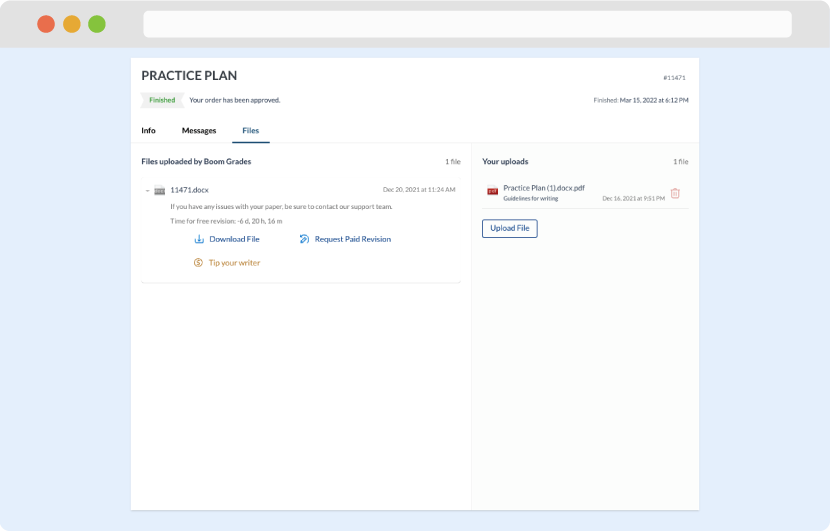
Once we have all the information and instructions that we need, we select the most suitable writer for your assignment. While everything seems to be clear, the writer, who has complete knowledge of the subject, may need clarification from you. It is at that point that you would receive a call or email from us.
Writer’s assignment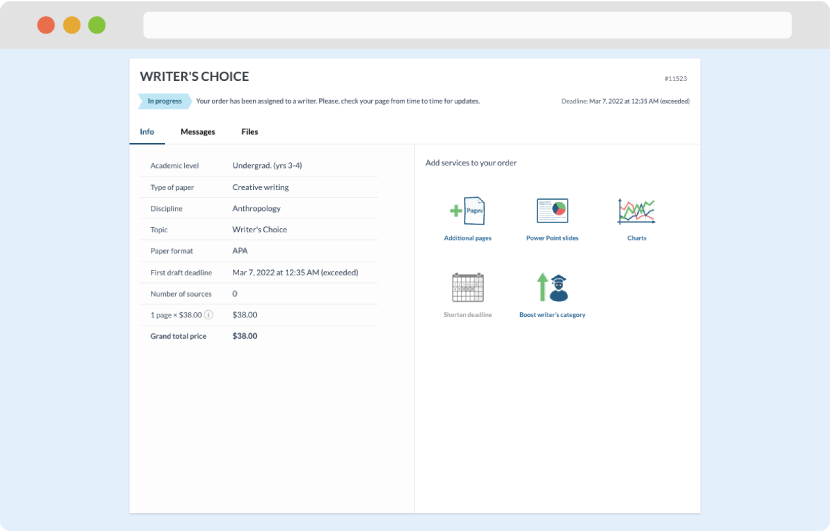
As soon as the writer has finished, it will be delivered both to the website and to your email address so that you will not miss it. If your deadline is close at hand, we will place a call to you to make sure that you receive the paper on time.
Completing the order and download