New Perspectives Access 2019 | Module 4: SAM Project 1aGlobal Human Resources Consultants
CREATING FORMS AND REPORTS
GETTING STARTED
•
Open the file NP_AC19_4a_FirstLastName_1.accdb, available for download from the
SAM website.
•
Save the file as NP_AC19_4a_FirstLastName_2.accdb by changing the “1” to a “2”.
o
•
If you do not see the .accdb file extension in the Save As dialog box, do not type
it. The program will add the file extension for you automatically.
Open the _GradingInfoTable table and ensure that your first and last name is
displayed as the first record in the table. If the table does not contain your name, delete
the file and download a new copy from the SAM website.
PROJECT STEPS
1.
As project manager, you need to be able to view records for all consultants, clients, and
projects as well as prepare reports for various departments. Open the ClientControl form
in Design View and perform the following tasks:
a.
Resize the Paid text box to be the same size as the ClientName text box above it.
b.
Move the Close command button to the top right corner of the form header.
c.
Add a label with the caption Human Resources to the top of the form at the
center of the form header, above the Client ID text box.
Save the ClientControl form, switch to Form View as shown in Figure 1, then close
the form.
Figure 1: ClientControl Form in Form View
New Perspectives Access 2019 | Module 4: SAM Project 1a
2.
3.
Open the ConsultantData form in Design View and perform the following tasks:
a.
Add the Reside field to the form. Position the Reside control so that the left edge
of the control aligns with the left edge of the other five controls.
b.
Delete the Reside label. Save the changes to the ConsultantData form and close
it.
Use the Form Wizard to create a form based on the Client table with the following
options:
a.
Include all fields from the Client table in the form.
b.
Select the Columnar layout for the form.
c.
Enter ClientEntry as the form title and then open it in Layout View.
4.
With the ClientEntry form open in Layout View, right-align the text in the five control
labels. Bold the five control labels. Save the form and open it in Form View.
5.
Use the ClientEntry form to navigate to the record with ClientID field value 9. Change
the Balance field value of this record to $25,000.
6.
Use the ClientEntry form to add a new record to the Client table with the field values
shown in Table 1. (Hint: The Total field is a calculated field.) Close the form.
Table 1: New Record for ClientEntry Form
ClientID
16
7.
ClientName
Intrazio
Paid
25,000
Balance
0
Open the ConsultantSalary form in Design View and perform the following tasks:
a.
Delete the Human Resources label control at the top of the form.
b.
Add the StartDate field to the form then position it just below the Salary control.
c.
Change the Salary label to Current Salary above the StartDate field, and the
ConsultantSalary label to Consultant Salary at the top of the form by adding a
space between the words.
Save the ConsultantSalary form and close it.
8.
Use the Report button to create a report based on the Country table. Save the report
with the name CountryList. With the report open in Layout View, change the label to
Country Report at the top of the report. Save the report.
9.
With the CountryList report still open in Layout view, change the CountryCode label to
Code, and the CountryName label to Name. Resize the height of the control that counts
the number of records in the left side of the Report Footer section to clearly display the
count, 13 as shown in Figure 2. Save the report and close it.
New Perspectives Access 2019 | Module 4: SAM Project 1a
Figure 2: CountryList Report in Layout View
10.
Use the Report Wizard to create a report based on the Project and Consultant tables
with the following options:
a.
Include the Description and Months fields from the Project table and the LastName
from the Consultant table in the report.
b.
Choose to view your data by Consultant.
c.
Use LastName as the grouping field.
d.
Sort the records by Description in ascending order.
e.
Select Stepped as the layout and Portrait as the orientation.
f.
Change the title of the report to ProjectsByConsultant and preview it.
Close the ProjectsByConsultant report.
11.
12.
Open the ConsultantsByProject form in Layout View, open the property sheet, and
perform the following tasks:
a.
Change the border style of the Description label to Transparent.
b.
Change the font size of the Global Human Resources Consultants label at the top
of the form to 20. Save the ConsultantsByProject form and close it.
Open the Consultant report in Design View and apply conditional formatting to the
values in the Salary control so that if the field value is equal to 71,000, the field’s font
New Perspectives Access 2019 | Module 4: SAM Project 1a
color is set to red (row 7, column 2 on the standard color palette) and the font is bold.
Save the report.
13.
With the Consultant report still open in Design View, change the font color of the label in
the Report Header section to dark blue (row 7, column 9 in the Standard Colors
palette.) Save the Consultant report, view it in Report View to review the changes, and
close the report.
14.
Open the ConsultantStartDate form in Design View and perform the following tasks:
a.
Resize the width of the form to the 6.5″ mark on the horizontal ruler.
b.
Change the background color for the Consultant StartDate Form label at the top
of the form to Light Blue 3 (row 4, column 5 in Standard Colors palette).
c.
Change the font for the Consultant StartDate Form label at the top of the form to
Georgia.
Save the ConsultantStartDate form and close it.
15.
Open the ProjectLandscape report in Layout View and apply the Georgia font scheme
from the theme fonts to this object only. Save and close the report.
16.
Open the ConsultantResides report in Layout View and perform the following tasks:
a.
Change the layout of the report to Portrait.
b.
Move the Reside column so that it appears between the ConsultantID and
LastName columns.
Save the ConsultantResides report and close it.
17.
Open the ClientFees form in Design View and perform the following tasks:
a.
Delete the =Date() and =Time() text boxes at the top of the form.
b.
Apply the Office Theme to this object only.
Save the ClientFees form and close it.
Save and close any open objects in your database. Compact and repair your database, close it,
and then exit Access. Follow the directions on the SAM website to submit your completed project.
Essay Writing Service Features
Our Experience
No matter how complex your assignment is, we can find the right professional for your specific task. Achiever Papers is an essay writing company that hires only the smartest minds to help you with your projects. Our expertise allows us to provide students with high-quality academic writing, editing & proofreading services.
Free Features
Free revision policy
$10Free bibliography & reference
$8Free title page
$8Free formatting
$8How Our Dissertation Writing Service Works
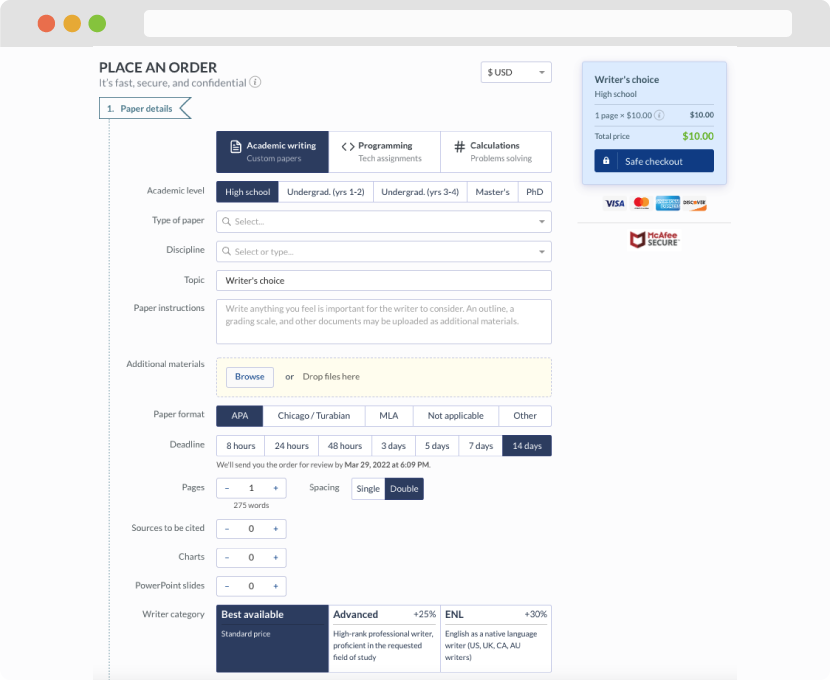
First, you will need to complete an order form. It's not difficult but, if anything is unclear, you may always chat with us so that we can guide you through it. On the order form, you will need to include some basic information concerning your order: subject, topic, number of pages, etc. We also encourage our clients to upload any relevant information or sources that will help.
Complete the order form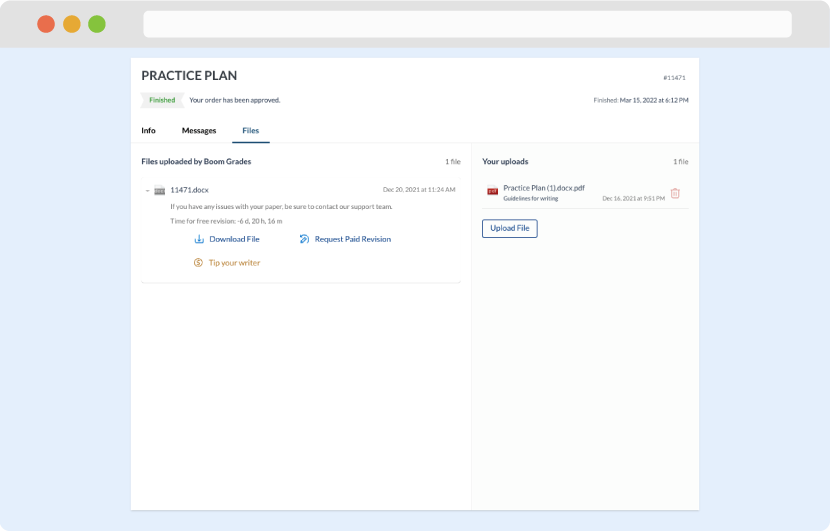
Once we have all the information and instructions that we need, we select the most suitable writer for your assignment. While everything seems to be clear, the writer, who has complete knowledge of the subject, may need clarification from you. It is at that point that you would receive a call or email from us.
Writer’s assignment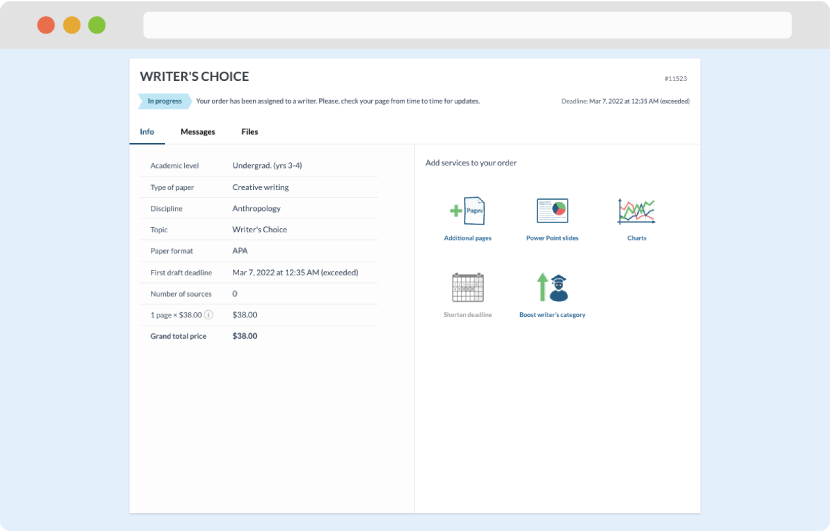
As soon as the writer has finished, it will be delivered both to the website and to your email address so that you will not miss it. If your deadline is close at hand, we will place a call to you to make sure that you receive the paper on time.
Completing the order and download